How to Set Up Online Booking for Your Salon
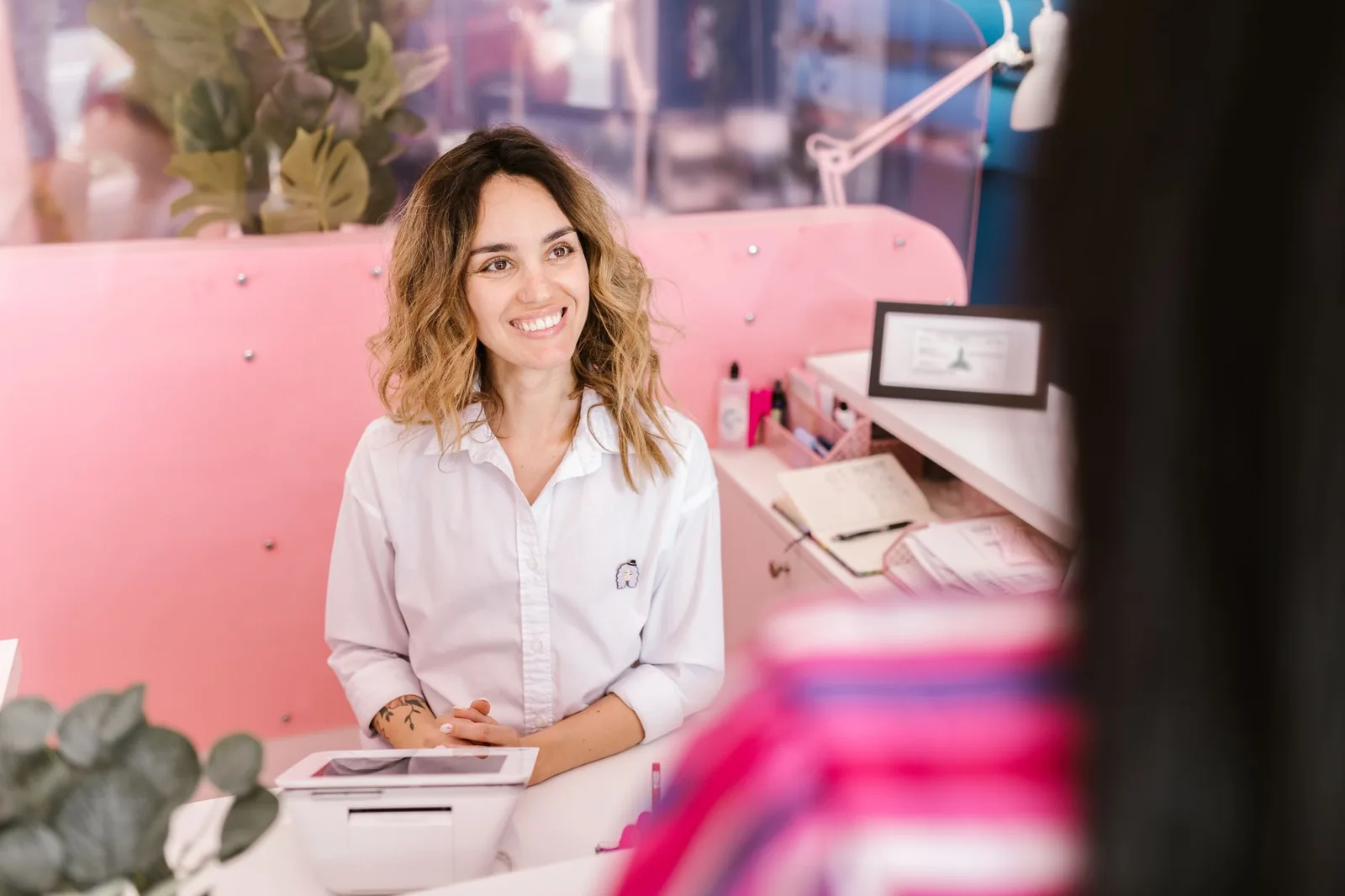
Last week a salon owner told me she counted 47 missed calls on a Saturday. Forty-seven clients who wanted to book — and most of them didn't call back. If your front desk is still the only door into your business, you're losing chairs every single day. Online booking fixes that, but only if you set it up properly. Here's how to do it the right way, step by step, in an afternoon.
Step 1: Get your service menu clean before you touch any software
Before you open any salon booking system, sit down with a coffee and rewrite your service menu. This is the part most owners skip, and it's the reason their online booking pages look messy and convert poorly.
A clean service menu has three things: a short client-friendly name, an accurate duration, and a price. That's it. "Women's Cut & Style — 45 min — $65" is good. "Ladies Hair Service Package Premium" is not. Clients book what they understand.
Walk through your current menu and ask:
- Is the duration honest? If a balayage takes you 3 hours but you've been booking it as 2, your calendar has been lying to you. Fix it now.
- Are there hidden variations? A men's cut on a beard client takes longer than a buzz. Either split it into two services or add a buffer.
- Are add-ons separate? Toner, deep conditioning, scalp treatment — list these as add-ons clients can tick during booking, not as guesswork for the stylist.
For a multi-chair salon, also decide which services each stylist actually performs. Your senior colorist shouldn't be getting booked for kids' cuts at $20, and your apprentice shouldn't be assigned a full corrective color. Online booking enforces this automatically once you set it — but you have to set it.
A practical checklist before moving on:
| Item | Done? |
|---|---|
| Every service has a clear name | ☐ |
| Every service has a realistic duration (including cleanup) | ☐ |
| Every service has a price (or "from $X" for variable work) | ☐ |
| You know which stylist offers which service | ☐ |
| Add-ons are listed separately | ☐ |
Step 2: Define real working hours and buffers for each stylist
Online booking only works if it reflects what's actually happening on the floor. The number one reason owners turn online booking off after two weeks is that it kept booking appointments they couldn't fulfill.
For each stylist, write down:
- Working days and hours — including the days they leave early for school pickup or the Tuesday they don't come in.
- Break blocks — lunch, smoke breaks, the 20 minutes between back-to-back colors.
- Buffer time per service — cleanup, sweeping, walking the client to the front. Even 5 minutes matters when you're booking 9 clients a day.
- Service-specific rules — for example, no chemical services in the last hour of the day.
Independent stylists often skip this and just block "Mon–Sat 9–7." Then the system books a perm at 6:45 PM and the stylist is there till 10. Be honest about your real availability.
For a barbershop with walk-ins, decide upfront how much of your day is bookable online and how much you reserve for walk-ins. A common split is 70% online / 30% walk-in during weekdays and a different ratio on Saturdays. You can adjust as the data comes in.
Step 3: Build the online booking page itself
Now you're ready to create the booking page. Whatever salon scheduling app you use, the flow should follow the way a client actually thinks:
Pick service → pick stylist (or "any available") → pick time → confirm.
Anything else is friction. Here's what to configure carefully:
Service descriptions. One sentence each. "Full highlights with toner and blow-dry, around 2.5 hours." Clients are scrolling on a phone — they're not reading paragraphs.
Photos. A real photo of your salon and one of each stylist beats a stock shot every time. Clients book people, not businesses.
Booking window. How far in advance can clients book? 60 days is common. How close to the appointment time can they book? I'd say 2 hours minimum for a quick service, longer for color so you can prep.
Cancellation policy. Write it in plain English on the booking page itself. "Free cancellation up to 24 hours before. Cancellations within 24 hours forfeit the deposit." Clear is kind.
Deposits. This is the one that scares owners. Should you take deposits? For any service over about an hour, or for new clients, yes. According to a 2023 industry survey by the Professional Beauty Association, no-show rates for unsecured appointments run roughly 2–3 times higher than for those with a deposit on file. A deposit of 20–30% of the service price is standard. Existing repeat clients with a good history can usually be exempted.
Step 4: Set up automatic reminders and confirmations
A booking confirmation should hit the client's phone within seconds of booking. A reminder should hit 24 hours before, and ideally a second one 2 hours before. This isn't optional — it's the single highest-ROI thing you'll configure all day.
A widely cited study by GoReminders found SMS appointment reminders can reduce no-shows by around 25–38% compared to no reminders at all, and similar findings have been reported across the broader appointment-based service industry. For a salon doing 200 appointments a week with a 10% no-show rate, cutting that to 6% is roughly 8 saved chairs per week.
Three rules for reminders that actually work:
- Use the client's first name in the message. "Hi Sarah, see you tomorrow at 2 PM with Marco for your balayage."
- Include a one-tap confirm/cancel link. If they cancel via the link 24 hours out, your waitlist gets pinged. If they cancel via voicemail at 9 PM, you find out at 10 AM the next day.
- Don't over-message. Confirmation + 24-hour reminder + 2-hour reminder is the cap. More than that and clients start ignoring them — or worse, marking them as spam.
For email confirmations, attach a calendar file (.ics) so the appointment lands in their phone calendar. A client with the appointment in their calendar shows up.
Step 5: Build a waitlist and a last-minute system
Every cancellation is either a lost $80 or a found $80. The difference is whether you have a waitlist set up before the cancellation happens.
Here's the workflow that works in real salons:
- When a client tries to book a slot that's taken, the booking page offers: "Join waitlist for this time?"
- When the booked client cancels, the system pings everyone on the waitlist for that window. First to confirm gets the slot.
- For same-day cancellations, the freed slot can also be pushed out as a "last-minute opening" — usually with a small discount (5–10%) to motivate fast booking.
A multi-chair salon I know runs about 12–15 cancellations a week. Before they set up a waitlist, those were mostly lost. After: roughly 60% of cancelled slots get refilled within hours. That's an extra 7–8 services a week with zero marketing spend.
Independent stylists benefit even more from this because every chair you fill is 100% of your income, not a percentage split.
Step 6: Promote the booking link so clients actually use it
Here's the part owners under-invest in. You can have the best online appointment booking page in town, but if nobody knows the link exists, your phone still rings.
Put the link everywhere:
- Instagram bio. This is the single highest-traffic spot for most salons. The link should be the booking link, not your website homepage.
- Google Business Profile. Add the booking link as the "Book online" action. This shows up directly in Google search results and Maps.
- Facebook page. Same — set the "Book Now" button to your link.
- Your website. A "Book" button in the top-right corner of every single page. Not buried in a contact form.
- Email signature for the salon's main address.
- A QR code at the reception desk and on the mirror at each station. Clients scan it to rebook before they walk out.
Train the front desk to push it. When a client calls, the receptionist says: "I can absolutely book you now, or — easier — I'll text you the link and you can pick any time that works. Want me to send it?" About half will take the text. That's half the call volume gone in a week.
For existing clients, send a one-time announcement: "We now book online — here's the link, same prices, same stylists, available 24/7." Don't bury it in a newsletter. Send it on its own.
According to the Local Search Association, more than 60% of consumers prefer to book service appointments online when given the option. The demand is there — you just have to make the door visible.
Step 7: Watch the numbers for the first 30 days
Once you're live, don't set and forget. Check these weekly for the first month:
| Metric | What it tells you |
|---|---|
| % of bookings made online vs. by phone | How fast clients are adopting it |
| No-show rate | Whether reminders and deposits are working |
| Cancellation rate | Whether your policy is too loose or too tight |
| Waitlist refill rate | How much revenue you're recovering |
| Bookings per stylist | Who's overbooked, who has gaps |
If 90% of bookings are still by phone after a month, your link isn't visible enough — go back to Step 6. If the no-show rate is creeping up, tighten reminders or add deposits for new clients. The whole point of moving off paper is that you finally have numbers to manage by.
Where Stylera fits into this
Everything above is platform-agnostic — it's the same setup whether you use a notebook with a calendar app or full salon management software. Stylera is built specifically for this workflow: you add your stylists and their working hours, build your service menu with durations and prices, and you get a public booking page tied to real-time availability. Clients book against the actual calendar, so double-bookings disappear. SMS and email reminders go out automatically, and when a client cancels, the slot is offered to a waitlist or pushed out as a last-minute opening so the chair doesn't sit empty.
For multi-chair salons, each stylist has their own services, hours, and schedule, and the reports show revenue and bookings per stylist so you can see who's full and who has gaps. If you run more than one location, you can manage them from a single account. Loyalty rewards repeat clients automatically based on their visit history, which closes the loop on the clients online booking brings in.
Wrapping up
Online booking isn't a magic switch — it's a series of small, honest decisions about your menu, your hours, your policies, and your communication. Do those well, put the link where clients can actually see it, and within a month your phone will ring less, your chairs will sit empty less, and you'll spend more time on clients and less on logistics.
If you want to set this up today, you can start a free trial at stylera.io/register and have your booking page live before your next shift.
Frequently asked questions
Should I require deposits for online salon bookings?
Yes, deposits are recommended for any service longer than about an hour and for all new clients. Industry data shows no-show rates for unsecured appointments run roughly 2-3 times higher than appointments with a deposit on file. A standard deposit is 20-30% of the service price, and you can usually exempt loyal repeat clients with a good booking history. Make your cancellation policy clear on the booking page itself so deposits don't feel like a surprise.
How do I prevent online booking from scheduling appointments my stylists can't fulfill?
The most common reason owners abandon online booking is that it books appointments outside real availability. For each stylist, configure exact working days and hours (including early-leave days), break blocks like lunch, buffer time per service for cleanup, and service-specific rules such as no chemical services in the last hour. You also need to assign which services each stylist actually performs, so an apprentice never gets booked for a corrective color. Honest setup is what makes online booking reliable instead of chaotic.
How much can SMS appointment reminders reduce salon no-shows?
Studies on appointment-based service businesses show SMS reminders can reduce no-shows by roughly 25-38% compared to sending no reminders at all. For a salon doing 200 appointments a week with a 10% no-show rate, that typically means cutting no-shows down to around 6%, or about 8 saved chairs per week. The best setup is a confirmation immediately after booking, a reminder 24 hours before, and a second reminder 2 hours before, each with a one-tap confirm or cancel link.
What should my salon's service menu look like before I set up online booking?
Each service needs three things: a short client-friendly name, an accurate duration including cleanup time, and a clear price (or 'from $X' for variable work). For example, 'Women's Cut & Style — 45 min — $65' converts far better than vague names like 'Ladies Hair Service Package Premium.' Split services that have hidden time variations (such as men's cuts with beards), and list add-ons like toner or deep conditioning separately so clients can tick them during booking. Cleaning up the menu first is the single biggest factor in how well your online booking page performs.
How should I handle online booking in a barbershop that also takes walk-ins?
Decide upfront what percentage of your day is bookable online versus reserved for walk-ins, rather than letting online bookings fill the entire schedule. A common starting split is 70% online and 30% walk-in on weekdays, with a different ratio on busier days like Saturdays. Monitor the data for a few weeks and adjust the ratio based on actual walk-in volume. This protects your walk-in revenue while still capturing the clients who prefer to book in advance from their phone.